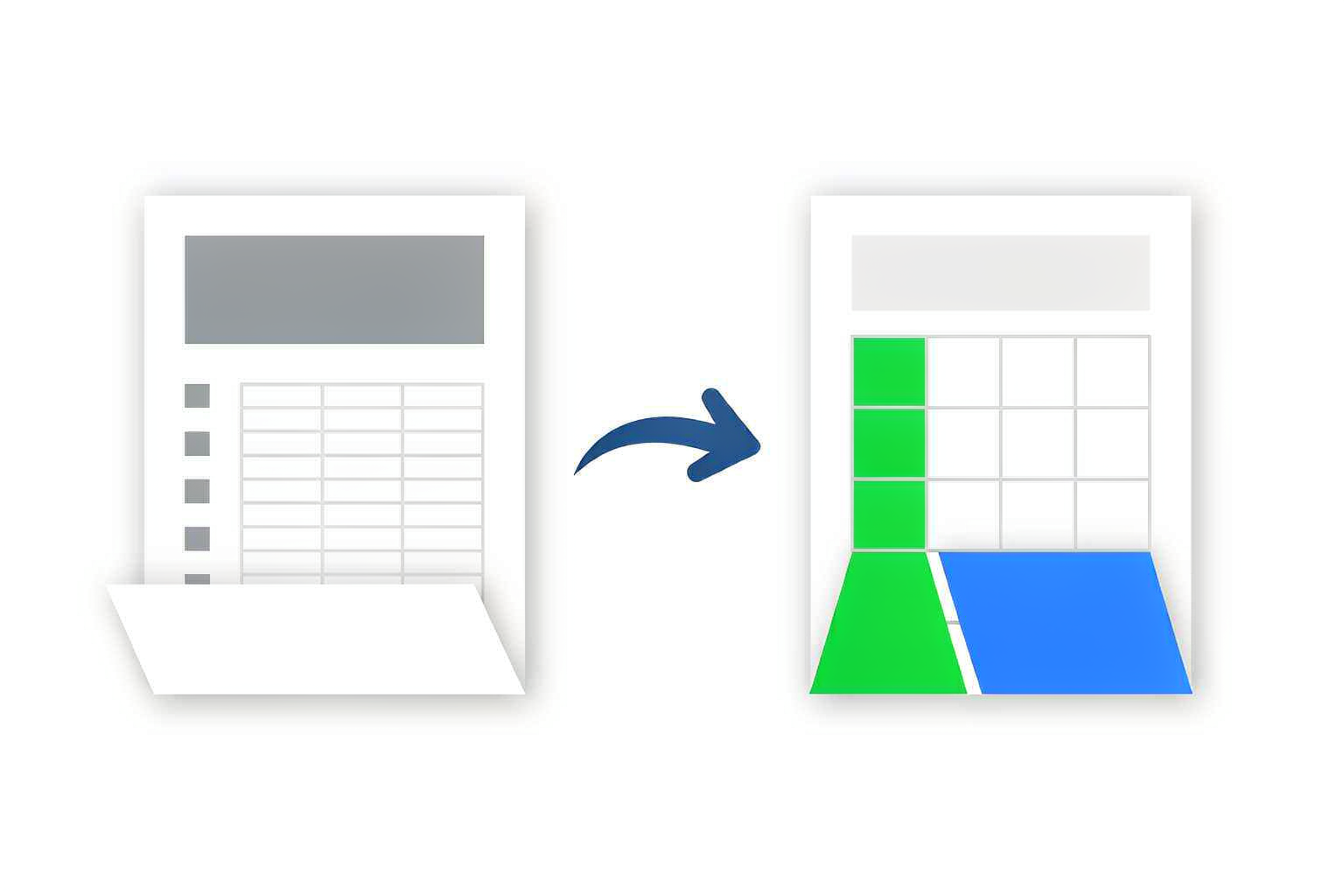
You export a 12-page financial report to Excel, open the result, and the beautiful quarterly table has become a single column of 800 rows. The numbers are there — somewhere — but every figure is now a text string, the column headers repeat every 20 rows, and one total has wandered off into a cell two columns to the right. The converter did not "lose" your table. It never understood it in the first place.
Tables are, without competition, the hardest thing to move from PDF to Excel. Text paragraphs convert fine almost everywhere; tables are where tools quietly fall apart. This guide explains why that happens at a mechanical level — because knowing the failure modes is how you fix them in minutes instead of hours — and then walks through five fixes, from choosing the right conversion mode to a five-minute cleanup routine in Excel itself.
Why tables are the hardest conversion in the office world
A PDF stores appearance, not structure. Inside the file, there is no object called "table", no instruction that says "these four cells share a column". There are only glyphs ("draw the character 7 at coordinates x=312, y=440") and horizontal lines that look like a grid to a human. A spreadsheet, by contrast, is pure structure: every value lives at an exact row-and-column address.
Converting PDF to Excel therefore means reverse-engineering a grid that does not exist in the file. The converter has to infer where columns begin and end by clustering text coordinates, guessing at cell boundaries, and deciding what a header is. Most of the time it does well. When it fails, it fails in predictable ways — and each failure mode has a specific fix.
The five ways tables actually break
After you have seen enough conversions, the failures stop looking random. Almost everything falls into one of five buckets:
| Failure mode | What you see in Excel | Root cause |
|---|---|---|
| Column collapse | All data crammed into one column, one row per line of text | The converter read the page line by line instead of detecting the grid — typical for borderless tables |
| Repeating headers | The header row (or the page header "Q3 Report — Page 4") appears every few dozen rows | Headers are stamped on every PDF page; a naive converter imports them as data rows |
| Numbers as text | SUM returns 0; numbers left-align; values like "1,234.50" or "(350)" sort wrong | The currency symbol, thousands separator or parentheses survive the conversion, so Excel stores the value as a text string |
| Merged and nested headers lost | Two-row headers ("2025 / Q1 Q2 Q3 Q4") become garbled half-empty rows | The PDF draws the merged cell once; the converter cannot know it spans four columns |
| Multi-page row splits | One logical row is cut in half at a page break — and its second half lands after the next page's header | The table is longer than one page, and the PDF only "knows" about page-sized chunks |
Fix 1: confirm the PDF was born digital
Before anything else, try to select text in the PDF with your mouse. If a sentence highlights, the file is born-digital: it contains real text and coordinates, and a good converter will rebuild the table 90%+ correctly. If nothing highlights, you are looking at a scan — a photograph of a page — and no converter on earth can extract a table from pixels without OCR running first. That is fix 3.
This one check saves the most time, because it tells you whether your problem is "wrong tool settings" (fixes 2, 4, 5) or "wrong pipeline entirely" (fix 3).
Fix 2: use a converter that detects tables, not just text
PDF-to-Excel converters work in two different modes, and the difference matters more than any other setting:
- Whole-page mode reconstructs the entire page layout, tables included. It is the right choice for reports where tables sit alongside paragraphs, and it keeps surrounding context intact.
- Table-detection mode hunts specifically for grid structures — including borderless ones — and outputs only the table, as a clean sheet. This is what you want for bank statements, invoices and data listings.
If your output has collapsed into one column, the most common reason is that a borderless table was fed to a line-by-line text reader. Re-run it with a converter that performs genuine table detection: WhizPDF's PDF to Excel converter keeps layout and handles bordered grids by default, and the dedicated Extract Tables from PDF tool is built for the harder, borderless cases — it hunts for aligned text clusters and column gutters rather than relying on visible rules.
One practical tip: convert the smallest possible page range that contains the table. A 200-page PDF where the table lives on pages 41–43 gives the detector 197 pages of opportunities to hallucinate grids out of paragraphs.
Fix 3: scanned tables must go through OCR first
A scanned table follows a different pipeline: PDF → OCR (pixels to text) → table detection → Excel. Skip the OCR stage and you get a spreadsheet containing one big picture — technically converted, practically useless. Even with OCR, quality is everything:
- 300 dpi or better is the practical threshold. Below that, digit confidence drops and characters like 8/B, 1/l and 5/S start swapping.
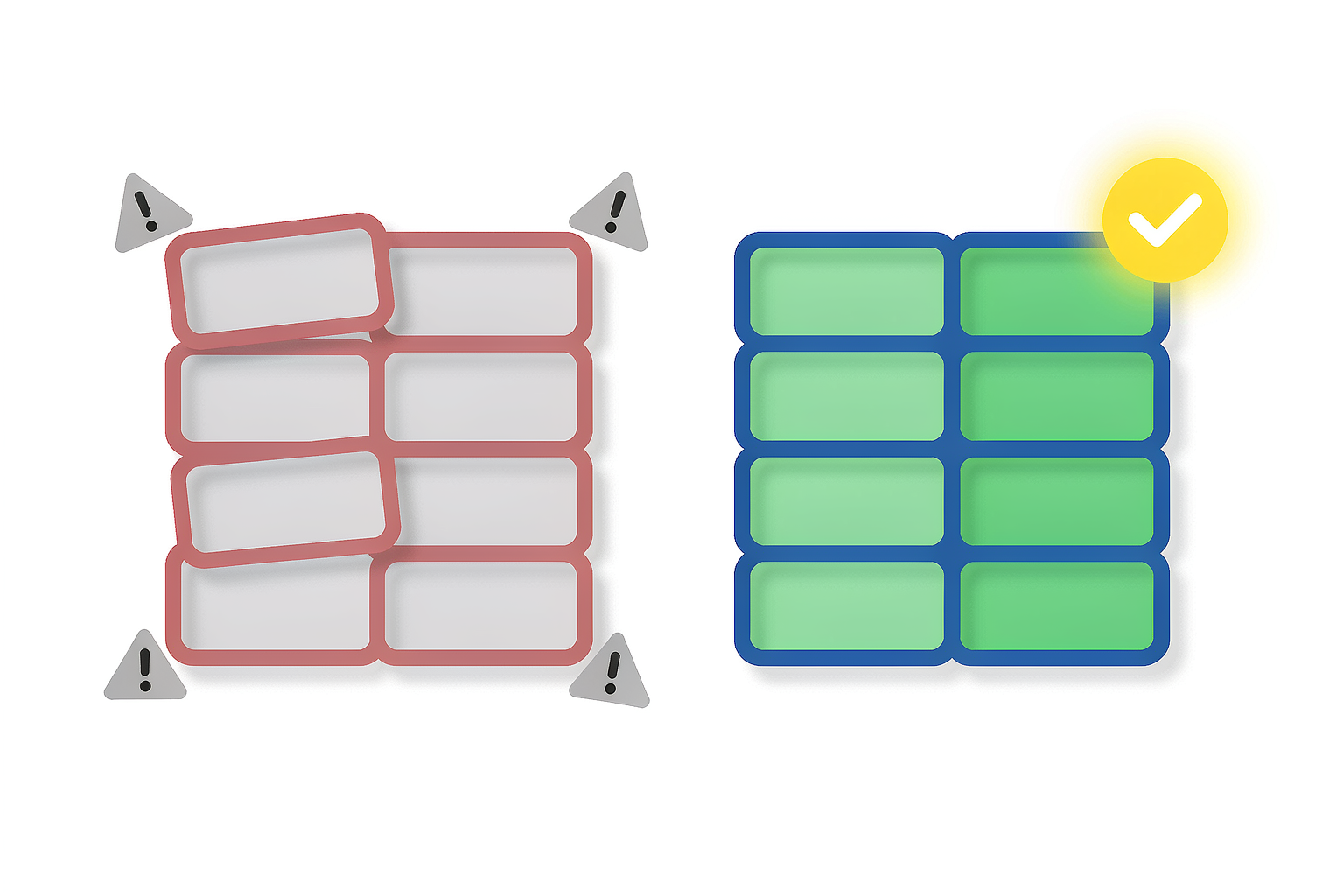
- Straighten the page. A 3-degree skew shifts each successive row's characters relative to the columns, which is how a clean table becomes a staircase. Most scanner apps ship a perspective-correction step — use it.
- Uniform lighting beats contrast filters. A photo of a receipt with a shadow across two columns will misread one of them no matter how much you sharpen it; re-shoot it instead.
For scanned documents, run Scanned PDF to Word (OCR) when you need the full page, or Image to Excel (OCR) when you simply photographed a printed table with your phone. Clean 300-dpi scans convert well enough for everyday editing; smudged thermal receipts are the one category where manual retyping may still win.
Fix 4: split multi-page tables before converting
When a table runs across 30 pages, two things go wrong at once: page headers ("continued from previous page") get imported as data rows, and rows that straddle a page break get severed. Instead of fighting the converter, remove the geometry problem:
- Split the PDF so each chunk contains a whole-number of table sections — say pages 1–10, 11–20, 21–30.
- Convert each chunk to its own sheet.
- In Excel, stack the sheets with Data → Get Data → Combine Queries (Power Query) or a simple copy-paste, then delete the repeated headers in one pass.
This also localizes errors: if one chunk misbehaves, you re-run ten pages, not a hundred.
Fix 5: the five-minute Excel cleanup routine
Even a good conversion usually leaves the same few scars. This is the sequence that fixes 90% of them, fastest first:
1. Numbers stored as text
Select the affected column → Data → Text to Columns → Finish (no options needed — it re-parses every cell). For stubborn currency strings, Find & Replace away the "$" and "," first. Negative numbers in accounting parentheses "(350)" become text: use Find & Replace "(" → "-" and ")" → "" in that order, then re-parse.
2. Repeated header rows
Sort or filter the sheet and delete every row where the first cell equals the header text — one filter, one delete. If page-level titles ("Q3 Report — Page 4") also leaked in, filter for cells containing "Page".
3. Dates that will not format
Imported dates are often text in disguise. =DATEVALUE(A2) converts them; if the locale is wrong ("03/07/2026" — March or July?), split with Text to Columns and choose the explicit day/month/year order.
4. Everything else
If the table needs multi-step surgery every time, stop hand-fixing: record the steps once as a Power Query transformation. Next month's export becomes a one-click refresh, and the cleanup logic is documented in the query itself.
Know when not to convert at all
Sometimes the honest answer is that conversion is the wrong tool. If the table has fewer than ~10 rows, retyping it takes less time than debugging a misread grid. If the table is a one-off and you only need two columns, a split-then-convert approach (or simply reading the values off) beats a full conversion. And if the source is a blurry receipt photographed at midnight, no pipeline will save you — retype it and move on.
The 60-second checklist
- Can you select text? No → OCR path (fix 3). Yes → continue.
- Does the table have visible borders? No → use table-detection mode (fix 2).
- Does the table span many pages? Yes → split first (fix 4).
- Do SUMs return 0? Numbers are text → Text to Columns (fix 5).
- Do headers repeat? Filter and delete — once, in Excel, not by hand.
- Under 10 rows? Consider just retyping it.
Frequently asked questions
Why does my PDF table convert into one long column?
The table has no visible border lines, so the converter treated each printed line as a text row instead of detecting a grid. Re-run the conversion with a tool that performs genuine table detection — WhizPDF's Extract Tables tool is built exactly for borderless tables.
Why do my numbers become text after converting PDF to Excel?
Currency symbols, thousands separators and accounting parentheses survive the conversion, so Excel stores "1,234.50" as a string. Remove the symbols with Find & Replace, then re-parse the column with Text to Columns.
Can I convert a scanned table to Excel?
Yes, but OCR must run first, and scan quality decides everything: shoot at 300 dpi or higher, keep the page straight, and use even lighting. Image to Excel (OCR) handles phone photos of printed tables; badly warped or low-resolution scans may still need retyping.
How do I stop page headers from repeating in my spreadsheet?
Headers are stamped onto every PDF page and a naive converter imports them as data. Filter rows where the first cell matches the header text and delete them in one pass — or avoid the issue entirely by splitting the PDF into page-range chunks before converting.
Is it safe to upload financial tables to an online converter?
It depends on the service. WhizPDF processes browser-based tools on your device and keeps uploaded files for at most 60 minutes before automatic deletion — your data is never read, shared or sold. For highly sensitive documents, that on-device processing means the file content never needs to leave your computer at all.