Convert JPG to Word: click "Choose file" above to upload your image and get back an editable Word document.
You can turn a JPG into an editable Word document in about a minute, free: WhizPDF's photo to Word converter reads the text in your image with OCR and hands back a .docx you can select and edit. Drop the JPG in, wait a few seconds, download — no account, and the photo is discarded the moment recognition finishes.
One warning first: Word has no direct image-to-text command, and plenty of "free converters" quietly cheat — they paste your picture into a Word file and call it converted. The text looks fine and edits not at all. Below: the one-step browser route, how to spot a fake conversion in two seconds, and how to fix the typos OCR always leaves behind.
Convert in the browser (one step, screenshots welcome)
- 1Open whizpdf.com/image-to-word in your browser.
- 2Upload your JPG — drag it in or select it. Have several pages? Select them all; each image comes back as its own .docx, no re-uploading between files.
- 3OCR reads the text automatically. Tilted or skewed shots get straightened before reading, so a crooked phone snapshot doesn't sink the output.
- 4Download the editable .docx.
What comes through: selectable, changeable paragraphs you can reformat like any Word document. Screenshots are the ideal input — sharp, straight, and high-contrast is exactly what OCR likes. Printed text is the home turf; neat hand printing comes through partially, and cursive mostly doesn't come through at all. English plus dozens of other languages are recognized automatically, and the photo is discarded as soon as recognition ends.
Why your "converted" file won't edit
Search for a JPG-to-Word converter and you'll land on tools that hand back a .doc with your picture sitting inside it. The file opens fine. The layout looks right. But the "text" is still an image — nothing selects, nothing edits. A long-running Microsoft Q&A thread is a graveyard of exactly this: one user was sent to an online converter and came back with "Nope. ZAMZAR says they do not convert jpg or pics/scans/pdf to WORD." It converted, technically. Just not to text.
The test takes two seconds: open the file and try to highlight a word. If the highlight paints the whole picture, no OCR ever ran. The fix is to run the image through a real OCR converter — no amount of clicking in Word will fix a picture.
How to shoot the photo so OCR gets it right the first time
Conversion quality is decided before any tool touches the file. Six habits cover almost everything:
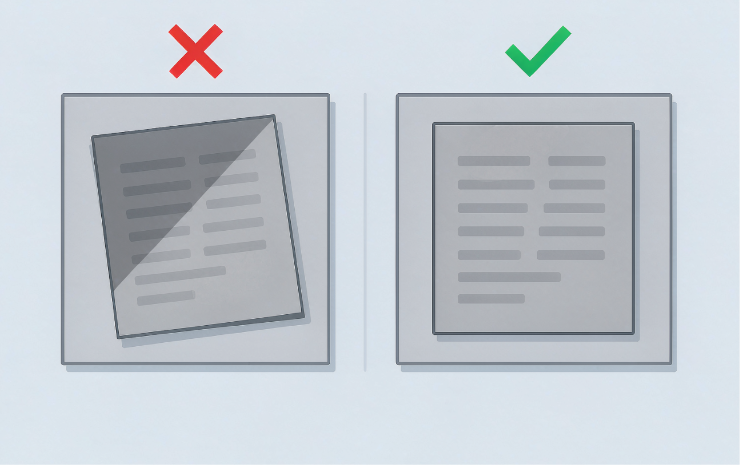
- Fill the frame with the page. The less background in the shot, the less there is to misread — crop down to the text if the photo is already taken.
- Even light, no shadows or glare. A shadow crossing one line reads as a broken line. Avoid shooting with a lamp behind you casting your own shadow onto the page.
- Shoot straight-on, not at a slant. Tilt and skew get straightened automatically; perspective distortion from a steep angle squeezes letters into shapes OCR can't untangle.
- Hold steady and let focus lock. If the image looks blurry on your screen, OCR will read it blurry too — there's no undo for an out-of-focus original.
- Lay the page flat. Curved pages — a book held open, a sheet on a wrinkled table — bend the letters along with them.
- Scanning instead of shooting? Around 300 DPI is where small print stays legible. Below that, fine characters smear.
And pick your battles: printed text is OCR's home turf, neat hand printing comes through partially, and cursive mostly doesn't come through at all.
Fixing the typos OCR leaves behind
Every OCR output needs a proofread. The difference between a five-minute cleanup and an hour of retyping is knowing where to look:
- Numbers first. OCR is worst with digits, and digits are what matter most — amounts, dates, phone numbers. Check every number against the original image before the file leaves your hands.
- Same mistake everywhere? OCR misreads certain shapes the same way every time: an m that came out as rn, a 0 that came out as O. Word's Find & Replace (Ctrl+H — Control+H on a Mac) fixes a systematic error in one pass — but eyeball each hit before replacing, because English has plenty of legitimate "rn"s (turn, warn).
- If errors are scattered, fix the image, not the text. Retake the shot using the shooting checklist above — straight-on, even light, page filling the frame. For faded text, a greyscale or contrast bump before re-running often flips the result.
- Structure cleanup. Headings may land as body text — reapply the styles in Word and the whole document snaps into shape.
When a JPG isn't the right input anyway
- The page is already a scanned PDF. Skip the image step entirely — the dedicated route for turning a scanned PDF into an editable Word file handles it in one pass, layout and page breaks included.
- The picture is a table. Word OCR turns columns into soup. A spreadsheet-targeted converter keeps the cells intact — see how to turn a picture of a table into an Excel sheet, then paste or link the result into Word.
- You only need the words, not a document. Plain-text extraction is faster and lighter: a tool built to extract text from an image gives you the words in seconds, no .docx required.
What happens to your photo
Two designs exist, and the difference matters if the document is sensitive. Browser-processed files never leave your device. Server-processed uploads get the heavy OCR done faster but should be deleted right after — WhizPDF's image-to-word discards images the moment recognition finishes, and anything that touches the server is auto-deleted within 60 minutes. One caveat is yours to manage: screenshots tend to include more than the text you came for. Crop out the email notification and the tab bar before you upload anything.
Which way should you go?
- One JPG or a batch, editable .docx wanted: the browser converter.
- File "converted" but nothing edits: no OCR ran — re-run it through the browser route.
- Source is a scanned PDF, not an image: the scanned-PDF route.
- It's a table: the Excel route.
- Only need the words: plain-text extraction.
Converting a JPG to editable Word text is a one-minute job once you know which converters actually read the picture — and which just wrap it in a Word file. Run the two-second highlight test on your first output, and you'll never waste time on a fake one again.
Yes. WhizPDF's OCR converter and OneNote both do it free. Watch for tools that return a picture inside a Word file — that's a conversion in name only.
The converter skipped OCR and pasted the image. Try to highlight a word: if the whole picture highlights, no OCR ran. Re-run the JPG through a real OCR tool.
Sharp, straight, well-lit printed text recognizes almost perfectly. Blur, curved pages, shadows, and decorative fonts cause errors; handwriting is only partially recognized.
Usually, yes — screenshots are sharp, straight, and high-contrast, exactly what OCR wants. Crop out personal info before uploading; screenshots tend to include more than the text you need.
Neat hand printing, partially. Cursive, mostly no. For handwriting-heavy pages, expect to type or correct heavily.
Yes — English and dozens of other languages are recognized automatically.
References
- Microsoft Q&A — How do I convert a jpeg document to a Word document? (the converter that "converted" without converting; the greyscale contrast trick)