The fastest way to merge Word documents is a browser tool, not a menu hunt: WhizPDF's Word merge tool takes up to 30 .docx files and hands back one combined document — styles, images, and each file's own page setup intact. Drop the files in, arrange them in reading order, download. Nothing to install, no account.
If you'd rather stay inside Word, its built-in Insert > Object > Text from File command does the same job offline — open the document that should come first, insert the rest. Both routes are below, and whichever you pick, three things break after almost every merge: heading styles, page numbers, and tables of contents. All three have two-minute fixes.
Method 1: Merge in the browser (best for batches)
This route handles the jobs Word's own command (Method 2) fumbles: large batches, files from different authors on different templates, and any merge where you want the result before your laptop fan spins up.
- Open whizpdf.com/merge-word in your browser.
- Drop in your .docx files — up to 30, 50 MB total per batch.
- Arrange them in reading order. The order you set is the order you get.
- Download the merged .docx.
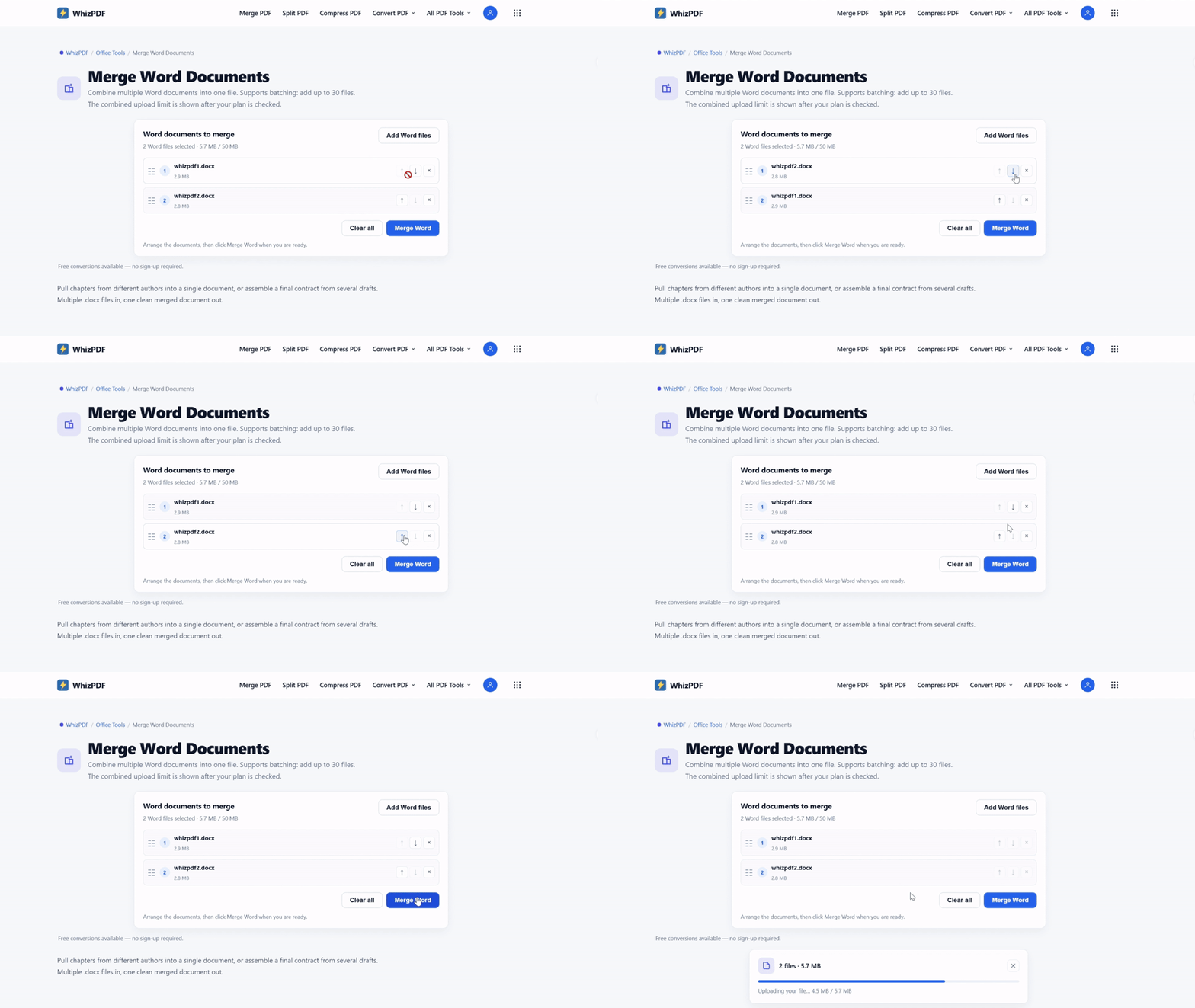
The merge runs document-to-document, so the output is a real Word file: styles, images, and each document's own page setup come through — portrait stays portrait, landscape stays landscape. That last part matters more than it sounds; it's exactly what a PDF round-trip flattens. Free, no account, and uploads processed on the server are deleted within 60 minutes.
Method 2: Text from File (built into Word, works offline)
For one or two files, when you're already working in Word, the native command is right there:
- Open the document that should come first — this is the host document.
- Click where the next document should begin.
- Go to Insert > Object, click the arrow on the Object button, and choose Text from File.
- Select the files — hold Ctrl to pick several — and click Insert.
On the Mac, recent versions keep the same command under Insert > Text > From File… If your version doesn't show it, the browser route above is faster than fighting menus.
One detail worth knowing, straight from Microsoft's own insert-a-document documentation: Text from File pulls in the document's body content, not its headers and footers. If those need to come along, insert each file in a new section — which also keeps the imported headers from hijacking the host document's pages.
One behavior to know before you click: the inserted content obeys the host document's styles. That's either exactly what you want, or the start of every formatting complaint you've ever heard about merged files. The next section explains why.
Why merged Word documents lose their formatting
Every .docx carries its own style definitions inside the file. Two documents can both use a style called Heading 1 and mean completely different things — 16-point navy in one, 14-point black in another. When you insert document B into document A and both define Heading 1, Word keeps the host's definition and applies it to everything you just inserted. Your chapter headings didn't shrink. Their style was replaced.
This is the single biggest reason merges "break," and it explains the classic symptom: the first half of the document looks right and the inserted half looks wrong — or everything snaps to whichever template opened the file.
The fix is one edit, not fifty. Open the Styles pane, right-click the style that looks wrong, choose Modify, and set it once — every heading using that style updates simultaneously. If a few stubborn paragraphs still fight you, cut them and paste back with Keep Source Formatting selected in the paste options; they keep their original look.
The same style-replacement mechanic is why PDF-to-Word conversions come out looking wrong — any time content moves between containers, the receiving container's rules win. Same disease, different door.
The table of contents trap
A merged document can look perfect and still be lying to you. Tables of contents, cross-references, figure numbers, and the page numbers printed inside a TOC are fields — snapshots taken the last time the field updated, not live text. After a merge, they still report the source documents' numbering. Your TOC says Chapter 3 starts on page 12. It actually starts on 47.
Nothing broke. The fields are just stale. Select everything with Ctrl+A, then press F9. Word refreshes every field in the file; when it asks about the TOC, choose Update entire table, not just the page numbers — the entries themselves may have moved. Do this once before the file leaves your hands, and again after any editing session that moves content around. Microsoft's documentation on updating fields describes this exact routine, plus a setting that saves future-you the trouble: under File > Options > Display, tick Update fields before printing.
None of this is optional if a human will navigate the document — an internship coordinator, a client, a print shop. A stale TOC is the fastest way to make a merged report feel homemade.
Merge in Word or merge as PDF?
Ask where the file goes next.
- More editing ahead — chapters still being written, a draft going back to reviewers: merge as DOCX, either method above. You want text that stays editable and styles you can still fix.
- Final and leaving — a contract going out, a report headed to print, a portal that accepts one upload: freeze it first. Convert each document to PDF, then merge those PDFs into one file. PDF locks the layout — fonts, margins, and headers can't renegotiate on someone else's machine.
The PDF route also sidesteps style collisions entirely, which is the same reason print shops ask for PDF in the first place. It costs you editability, so it's the choice for finished documents, not working ones.
Three cleanups that cover most of the rest
- Page numbers restart at 1 in the middle of the document. Inserted files brought their own section breaks, and every section can hold its own numbering rule. Double-click the footer, go to Page Number > Format Page Numbers, and choose Continue from previous section — the setting Microsoft built for exactly this.
- Headers or footers change mid-document. Headers belong to sections too. Double-click the header area and toggle Link to Previous: on to inherit the running header, off where a chapter needs its own.
- Numbered lists restart at 1. Right-click the first wrongly numbered item and choose Continue Numbering — or Set Numbering Value if it needs a specific start.
Before you merge anything with tracked changes
Accept or reject every tracked change and delete the resolved comments first. Merging files that still carry revisions produces a document wearing two people's markup at once, and untangling it takes longer than the merge did.
The exception is the job where you're combining two versions of the same document and need to see who changed what. That's Review > Compare > Combine — a different feature for a different job, and it keeps the revisions attributed instead of merged in.
Which way should you go?
- A batch of files, formatting must survive: the browser merge.
- One or two files, already working in Word: Text from File.
- Finished file, headed to print or a portal: the PDF route.
- Combining reviewer versions of one document: Review > Compare > Combine.
- The reverse job — one file carved into separate ones: that's covered in how to split a PDF into multiple files.
Merging is a five-minute job once you know which collisions to expect. The first merge is the one that teaches you — do it with the fixes above open in another tab.
Yes, it inserts the full content of each file. What changes is which style definitions govern how that content looks — the host document's win any name collisions.
Yes, but save the older .doc files as .docx first. The legacy format is where conversion gremlins live, and one save-as removes the whole category.
The inserted documents carried section breaks, and each section can hold its own numbering rule. Set Format Page Numbers to Continue from previous section.
Yes. Word switches page setup per section, and a merge tool that preserves each document's setup does the same. Sections are the mechanism, not a problem.
WhizPDF's merge tool runs free in the browser with no account, and Text from File is built into Word. Both cost nothing.
References
- Microsoft Support — Insert a document in Word (Text from File steps; the note on headers and footers needing a new section)
- Microsoft Support — Update fields (Ctrl+A → F9; Update entire table; update fields before printing)
- Microsoft Support — Format page numbers in Word (Continue from previous section)